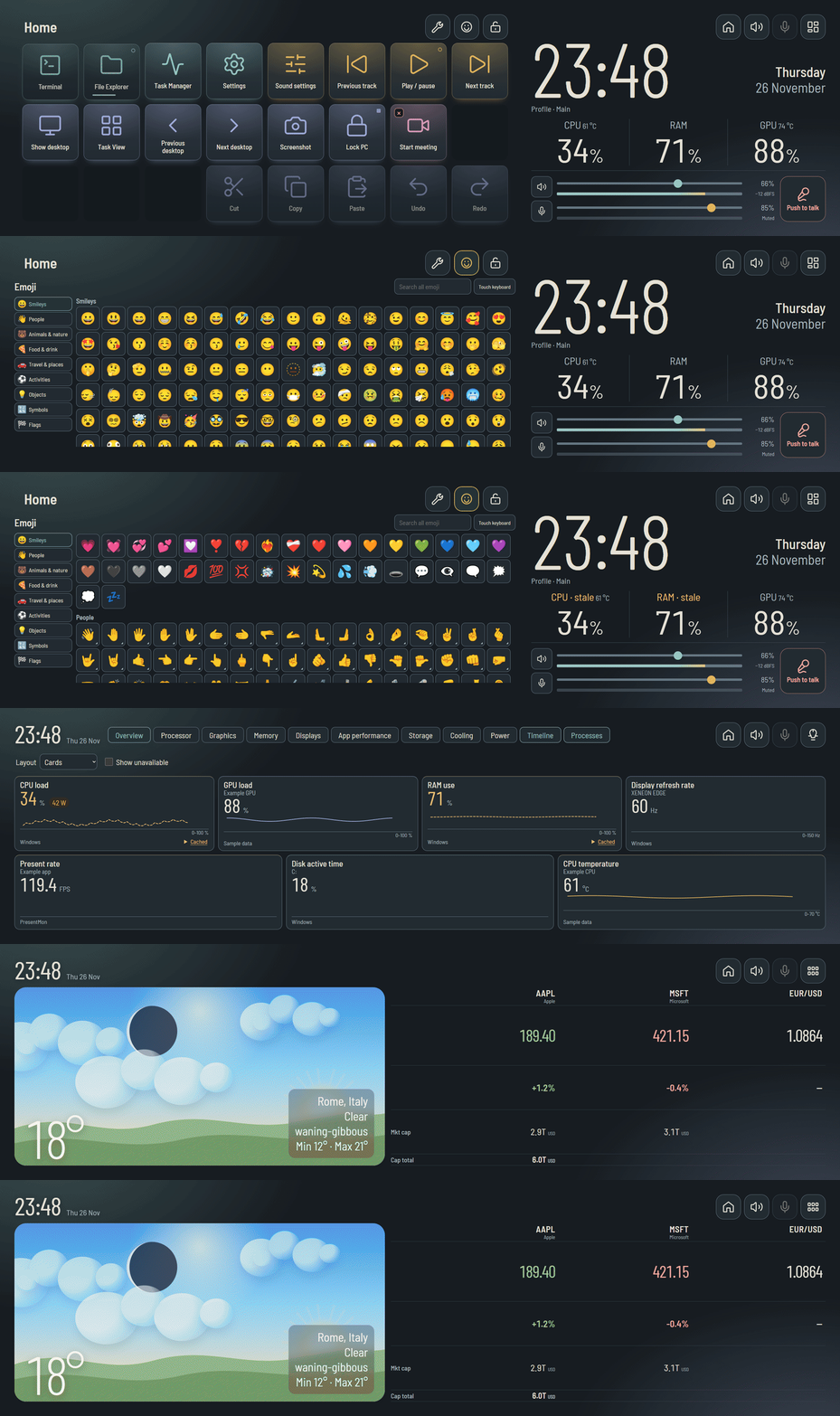

CORSAIR XENEON EDGE Windows and Linux

Switch apps.
Your shortcuts follow.

When you switch to another app, Lastra automatically loads its shortcuts on your XENEON EDGE. Build your own macro pages and keep the Windows mixer and live PC stats within reach.

Windows 10 or 11 · Linux x86-64 · MIT · Release notes and checksums for v1.5.1 · Usage and warranty notice

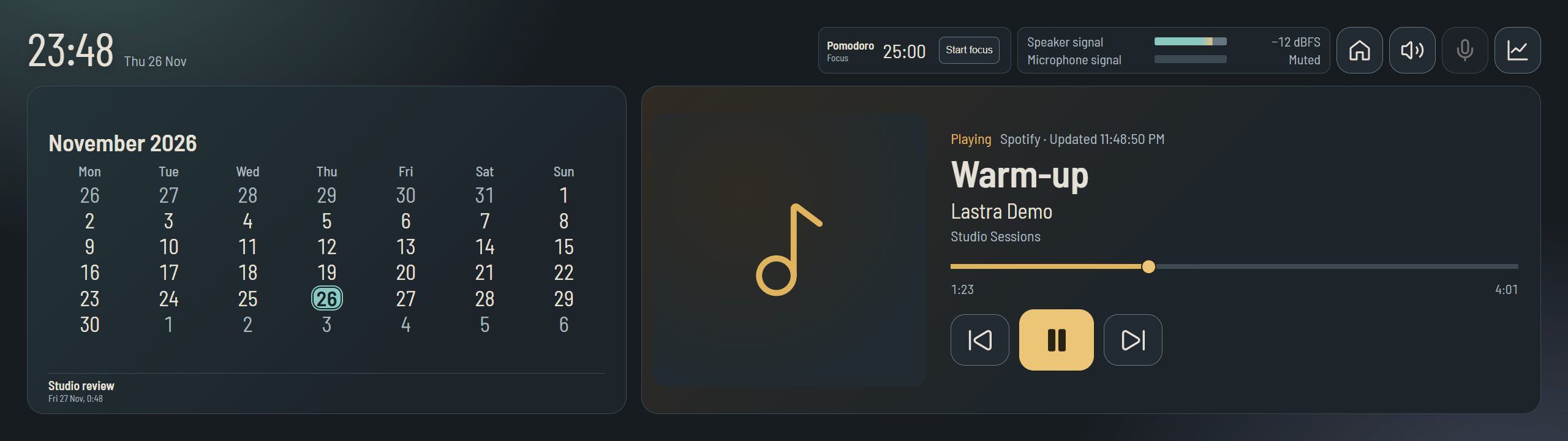
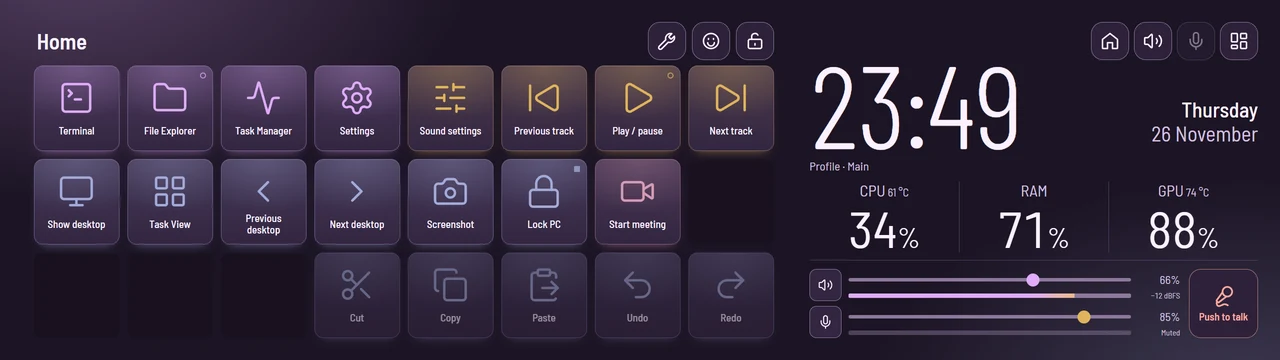
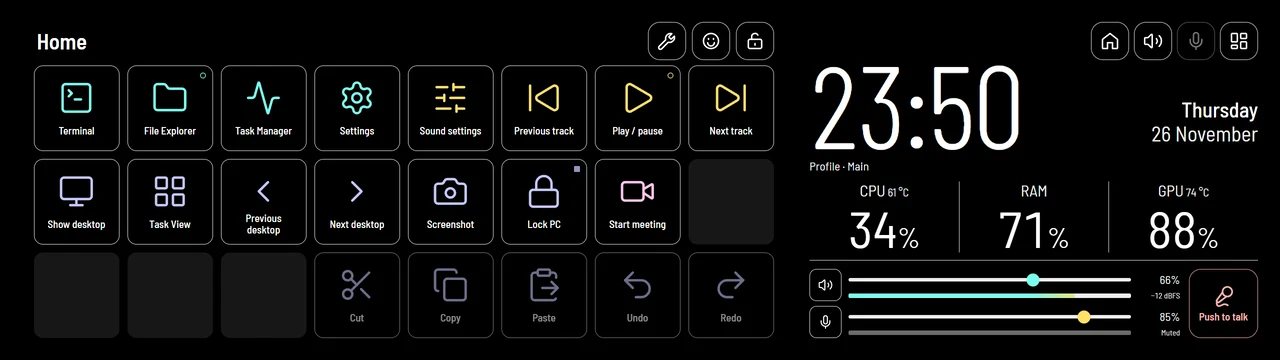
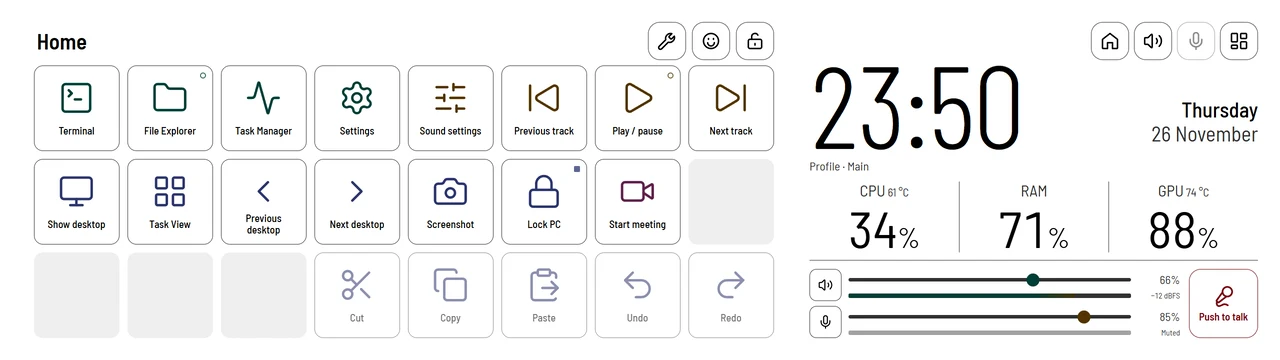
Lastra Home showing touchscreen shortcut keys, Windows audio controls, and CPU, RAM, and GPU readings.
Deck Keys with an example Home layout in the Soft glow look, with sample telemetry
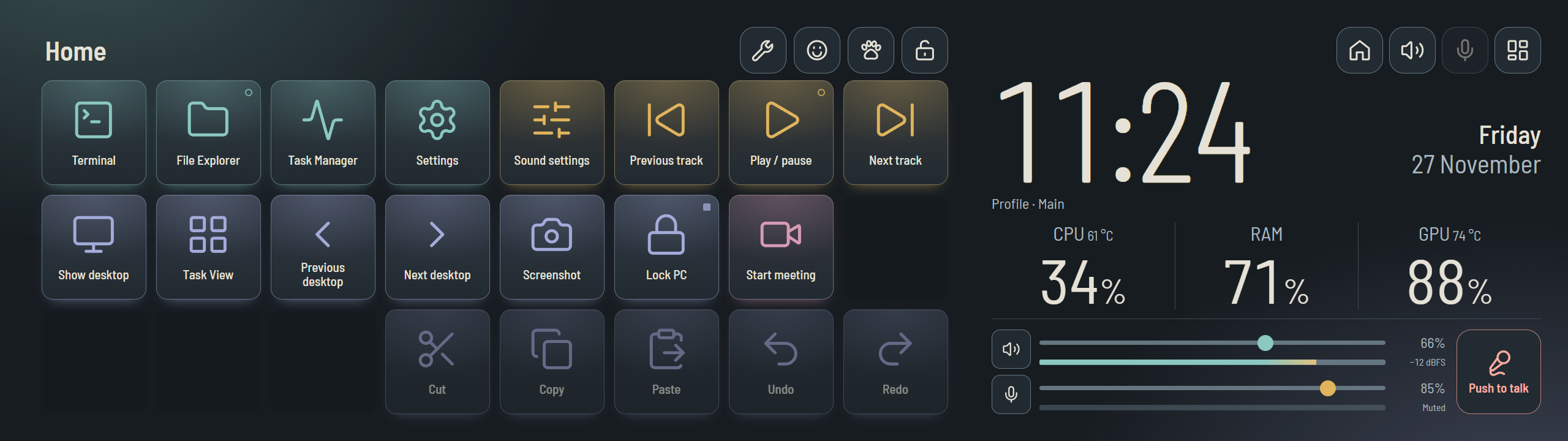
The Tools, Emoji, Deck pet, and page lock icons. The paw sits immediately before the lock.
Tap the paw beside the lock to open the habitat.

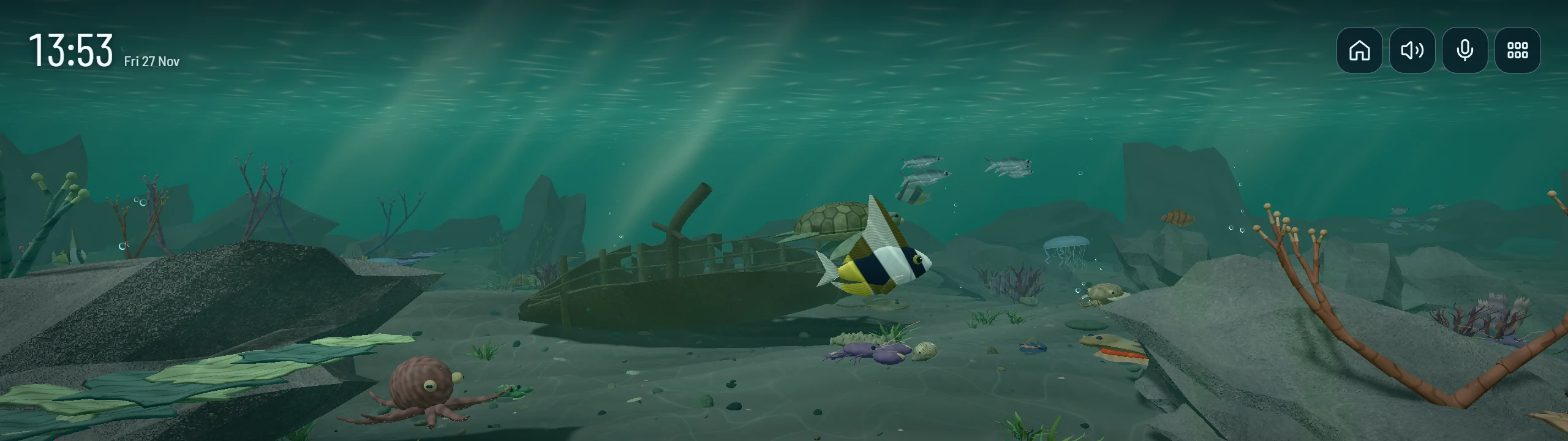
Aquarium

A living aquarium across your deck

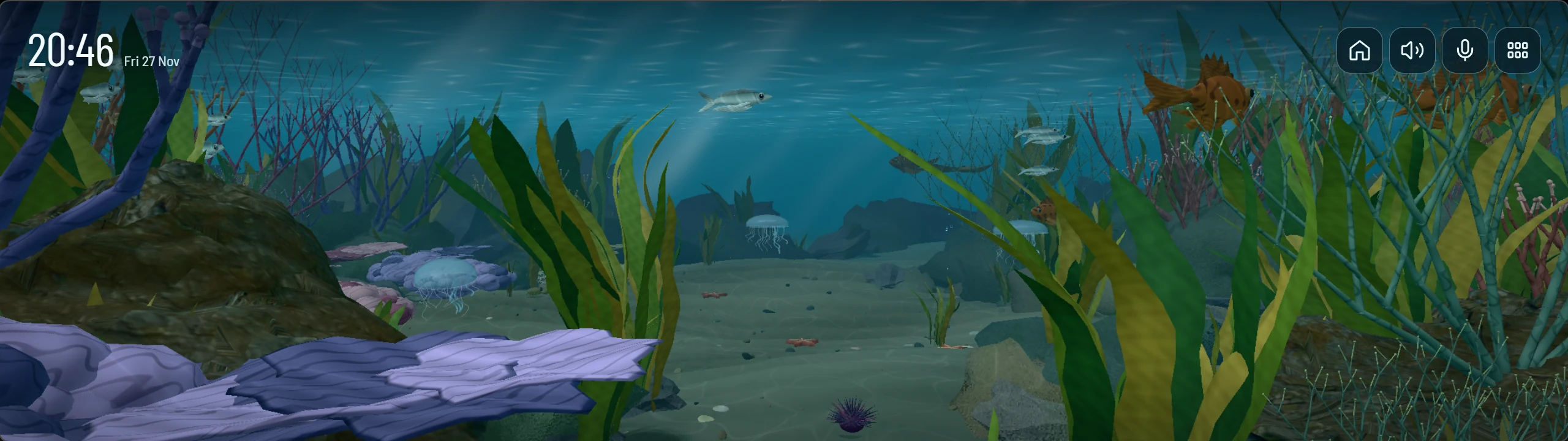
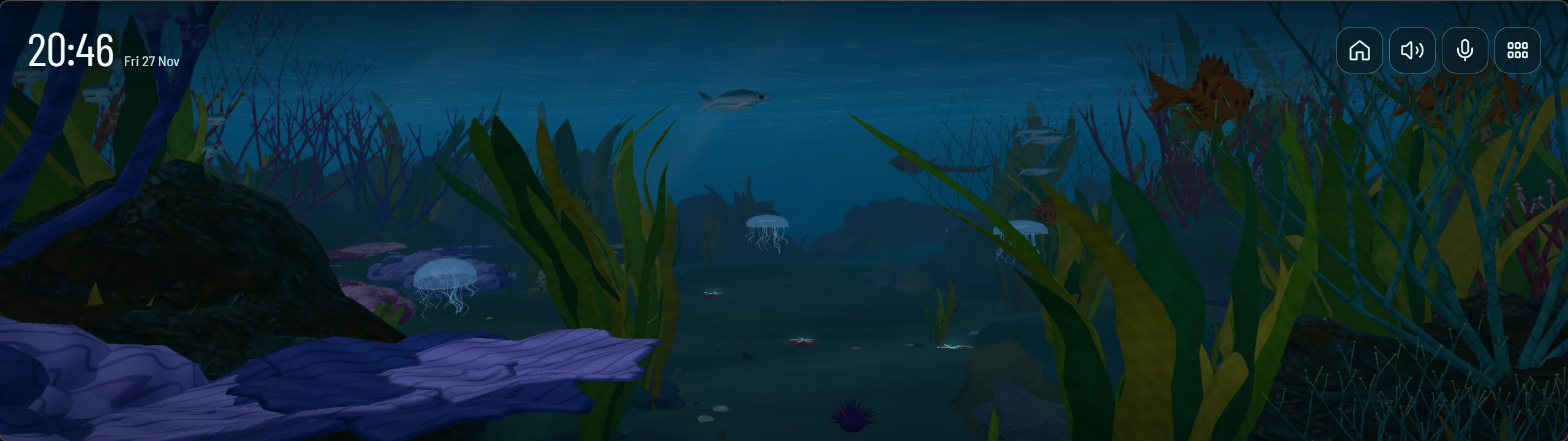
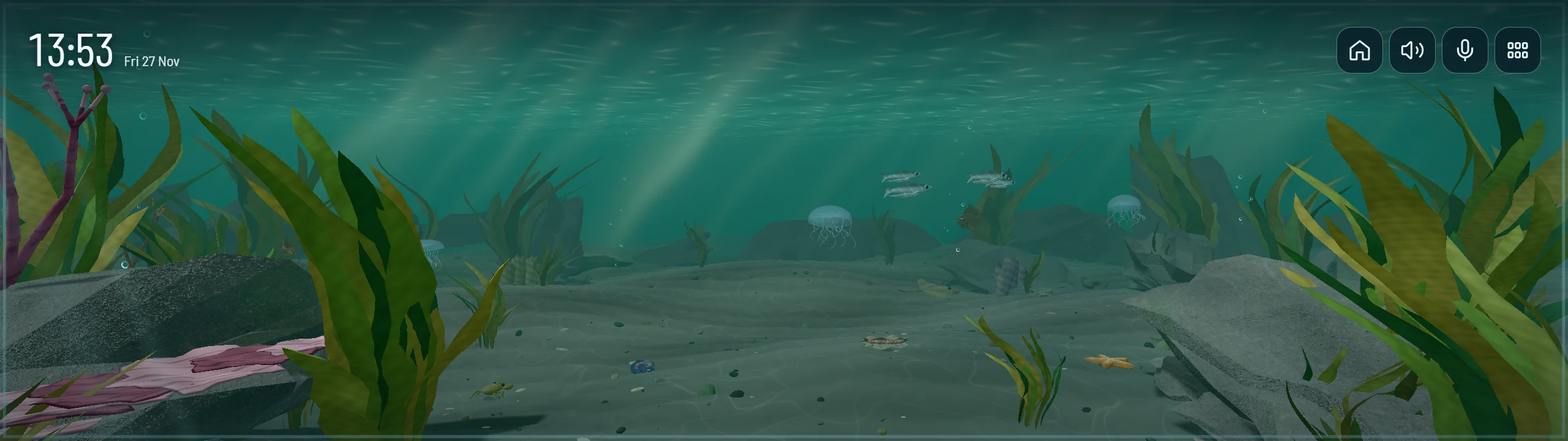
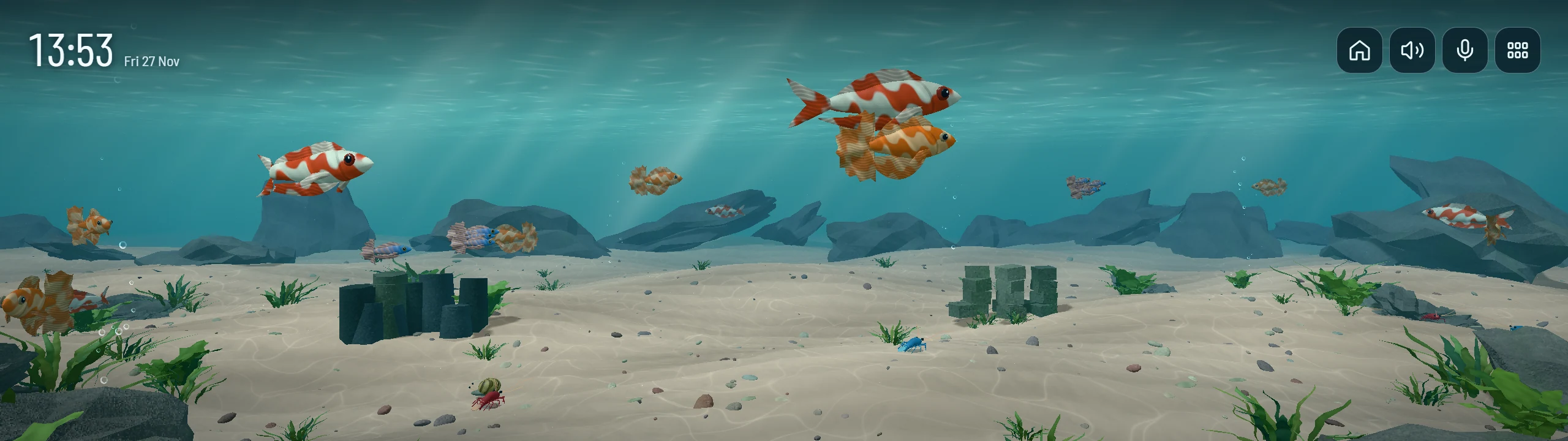
Choose Aquarium in the view switcher to fill the XENEON EDGE with a 3D habitat. The time, date, and four corner controls stay visible while the light follows your local day and night.

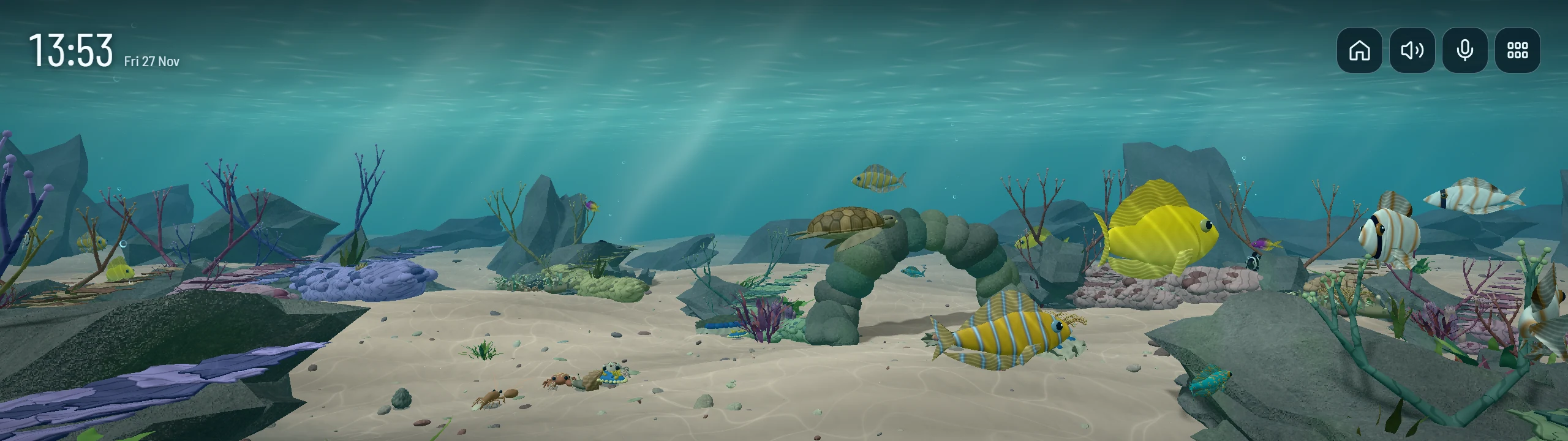
Start with one of seven habitats and make it your own. Choose among 53 animal species, from schooling fish and reef crustaceans to mussels, oysters, and two sea turtles.

Read the aquarium guide
A green sea turtle glides past swaying seaweed and coral. Recorded from Lastra’s aquarium view in the XENEON EDGE’s 32:9 format.
  • Place decorations in 3D

    Drag coral, rocks, and other decorations on the map or in the always-visible preview. Orbit and zoom to check their placement.

  • Preview day and night live

    Switch the desktop preview and XENEON EDGE together. Adjust night brightness and animal glow independently. Leaving Settings restores the saved light cycle.

  • Feed by touch

    Tap the water to drop flakes, pellets, or bottom wafers. Fish turn toward the food and follow it as it drifts.

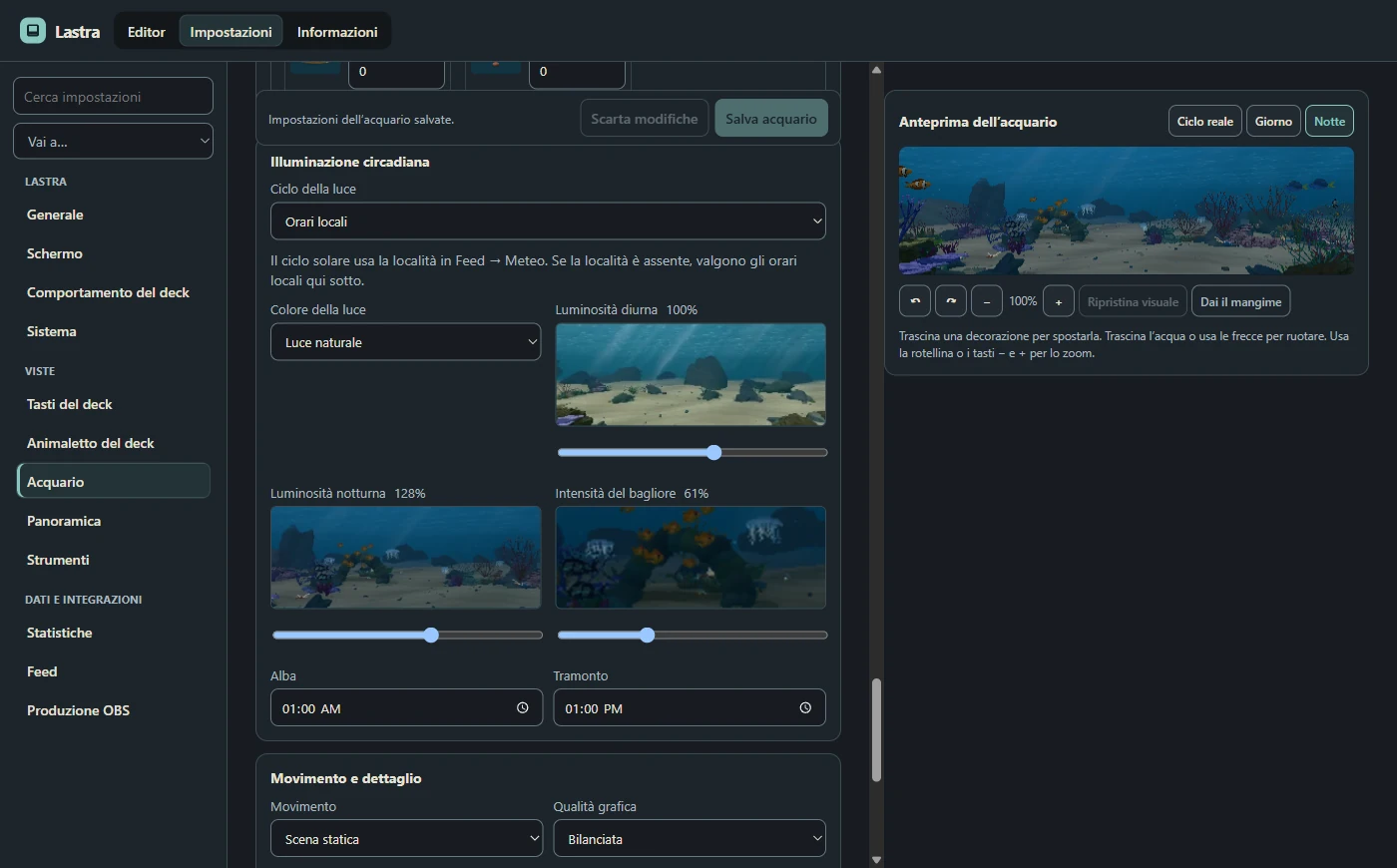
The Aquarium settings show illustrated sliders for night brightness and glow beside the pinned 3D preview and its day and night controls.
Adjust the lighting beside the 3D preview. Try settings on the panel before saving.
Two taps release pellets into the current and draw the fish toward the middle of the atoll.

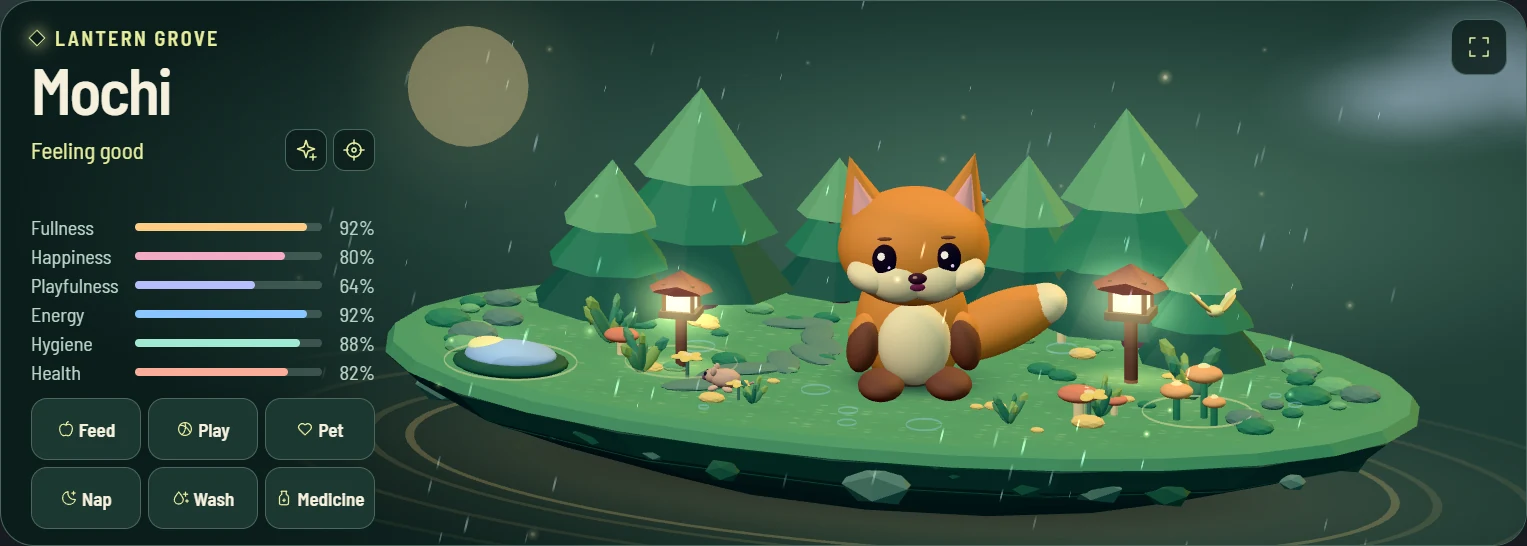
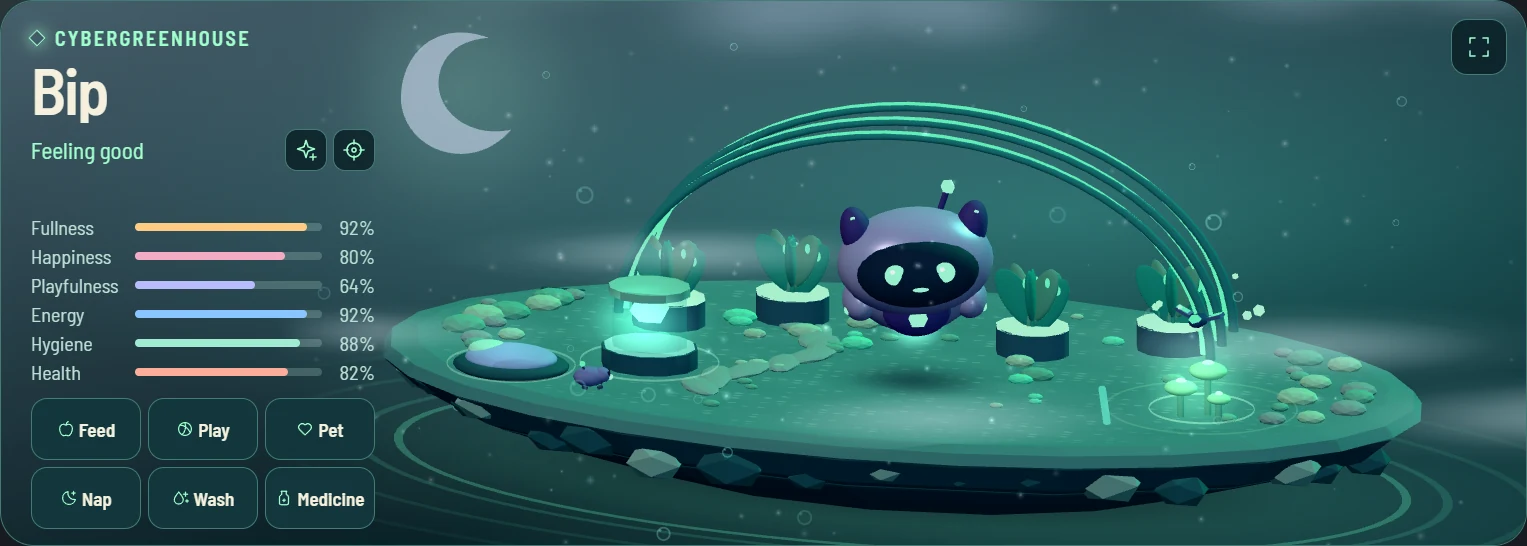
Deck pet

Give your pet the whole screen

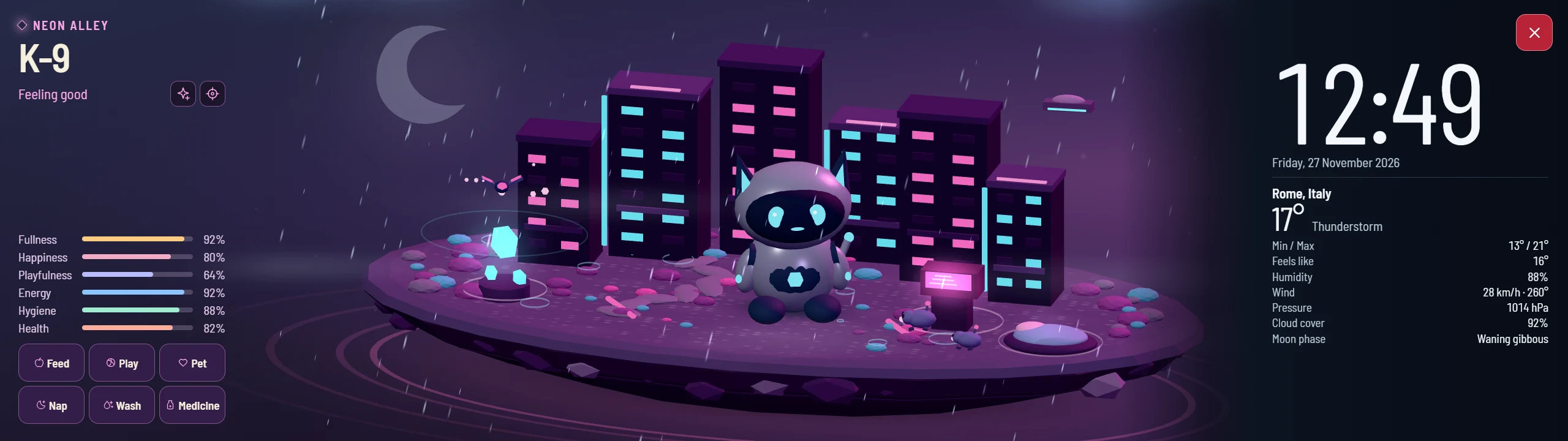
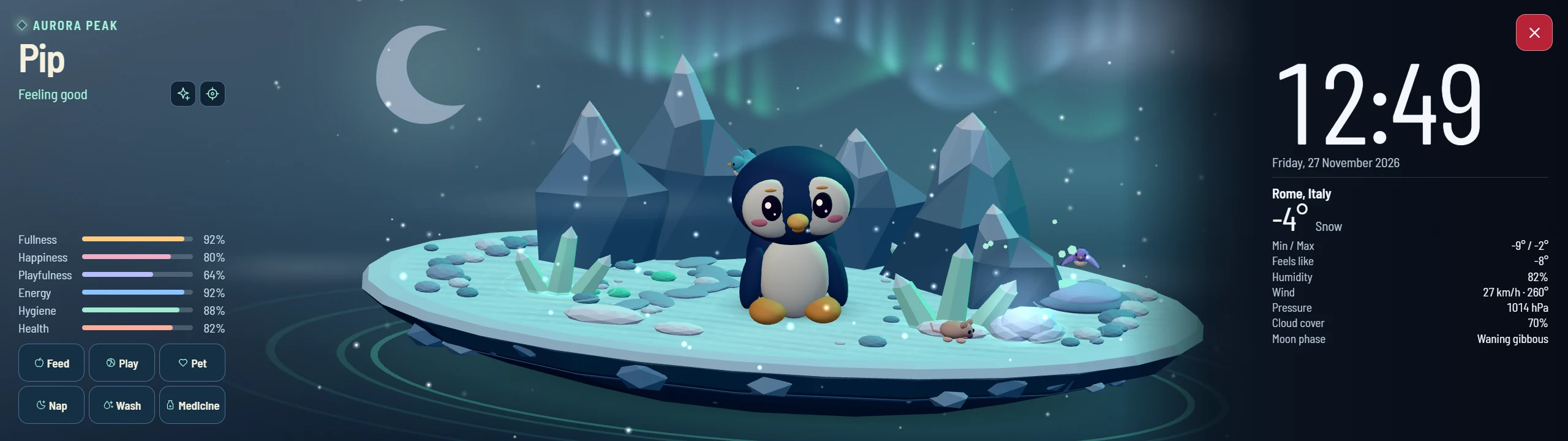
Open the 3D habitat from Deck Keys or expand it to fill your XENEON EDGE. Full screen puts a large clock, the date, and your local weather beside the habitat. Tap the red × to return to the compact view.

Choose among eight pets and eight habitats. Your pet roams, reacts to its needs, and meets the wildlife around it. The scene follows your local weather in both views and pauses when you hide it.

Read the deck pet guide
Mochi dribbles, K-9 plays volley, Bip sings, and Pip takes medicine. The video and screenshots come from Lastra running on a 2560 × 720 CORSAIR XENEON EDGE with a demo profile and sample weather.
  • Keep six needs in balance

    Fullness, happiness, playfulness, energy, hygiene, and health are at their best at 100%. Medicine restores health and naps restore energy.

  • Play and explore by touch

    Play cycles through ball games, jumps, songs, and more. Tap the ground or an object to explore, or tap the sun, moon, or planet to make your pet look up.

  • Make the habitat yours

    Pick a pet, habitat, name, and motion preference in Settings → Deck pet. Your choices and your pet’s progress are saved locally.

Lastra on the panel

Shortcuts for the active app

The deck follows 451 Windows and installed web apps, including Visual Studio Code, Claude Desktop, SOLIDWORKS, KiCad, and Altium Designer. Windows Terminal shortcuts cover pane resizing, page scrolling, and text selection. Swipe to move between the pages of an app. The count beside the app name shows where you are.

Configure app shortcut pages · Watch custom shortcut pages
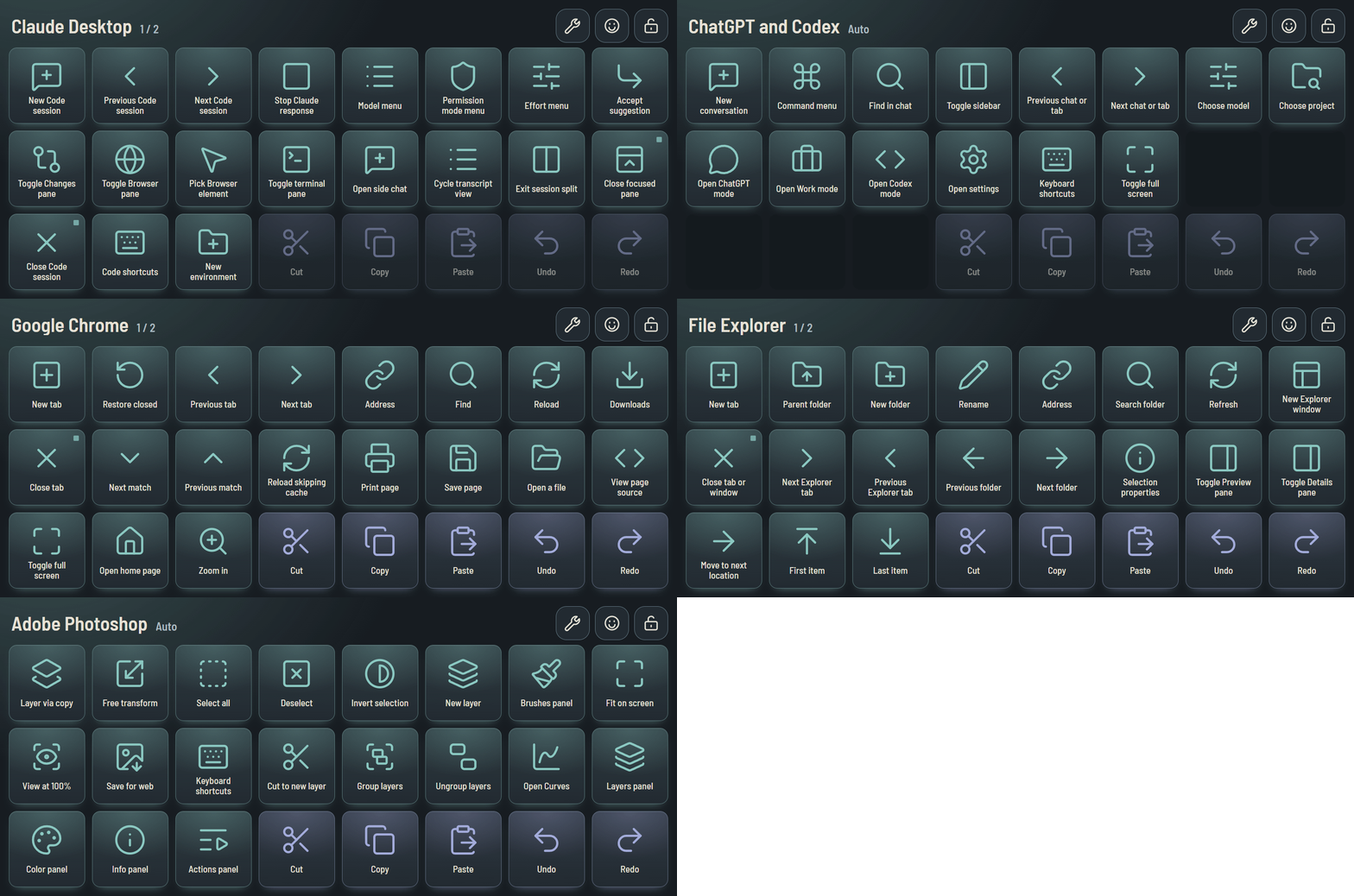
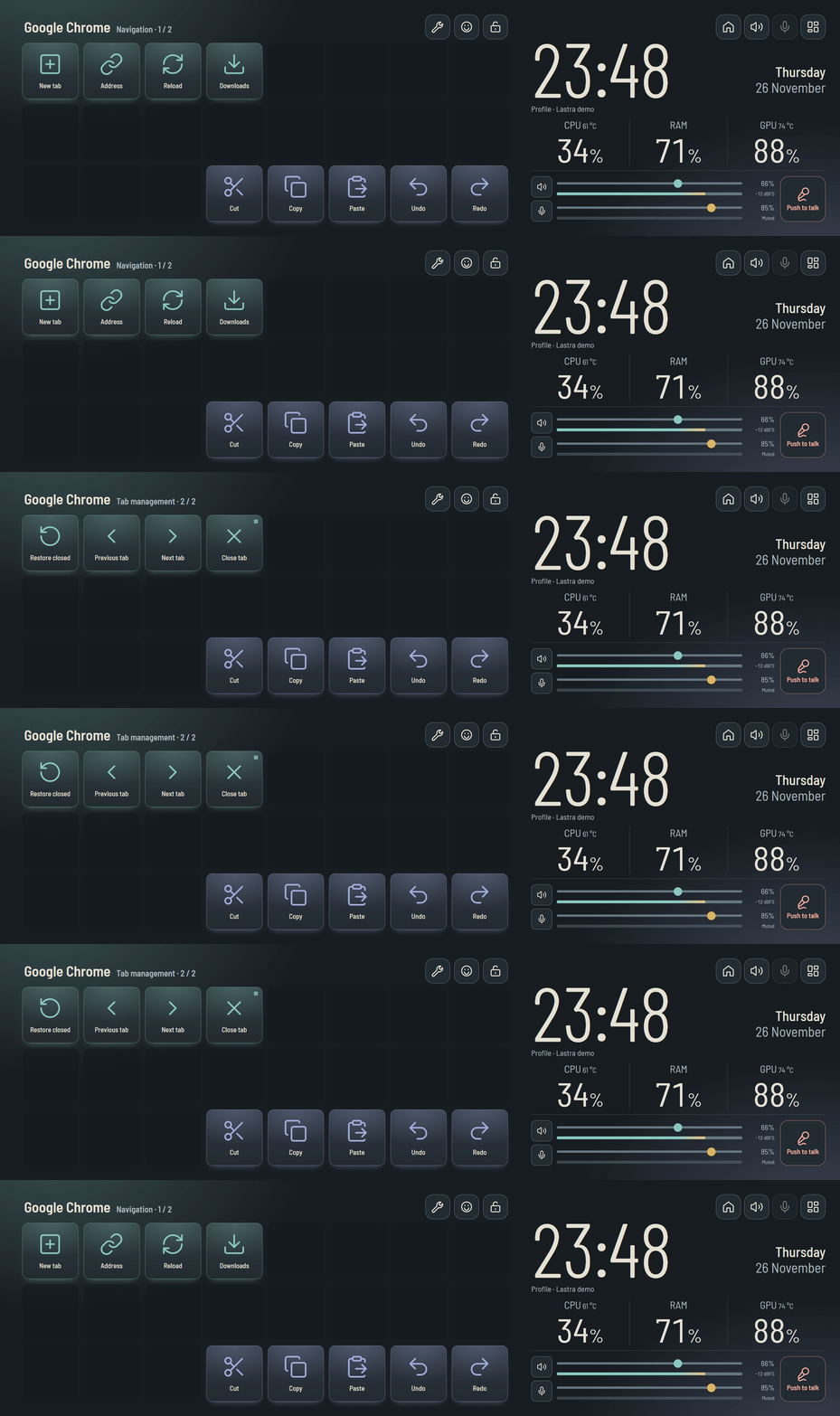
Deck Keys switches from Claude Desktop to Codex, Chrome, File Explorer, and Photoshop, then loops back to Claude Desktop.

Edit a copy and preview it on XENEON

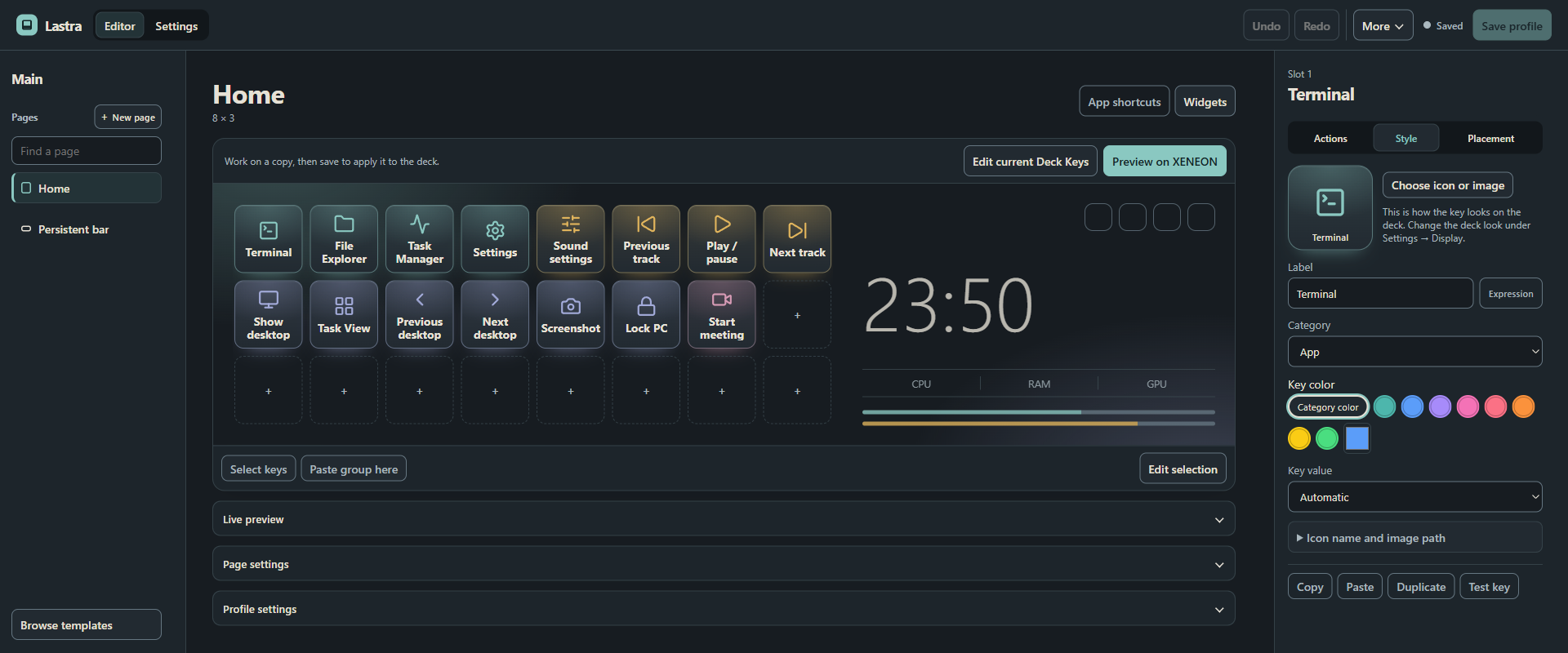
Open the visible Deck Keys page in the editor. The editor draws the page as the deck does, with the same look, beside an outline of the side panel. Give a key its own color in the Style tab, and use the page filter to find a saved page by name or folder.

Preview the draft on the XENEON EDGE as you edit, then save it when the layout is ready.

Use the profile editor
The profile editor with the Home page drawn as on the deck, and the Style tab showing a key preview and color swatches.

Tools and full-screen Pomodoro

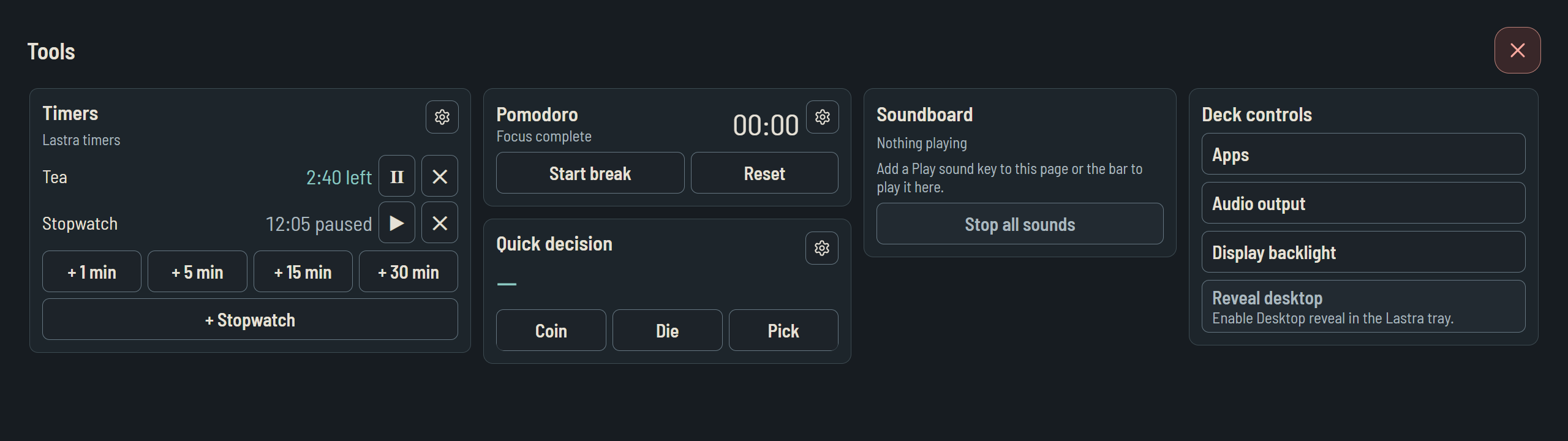
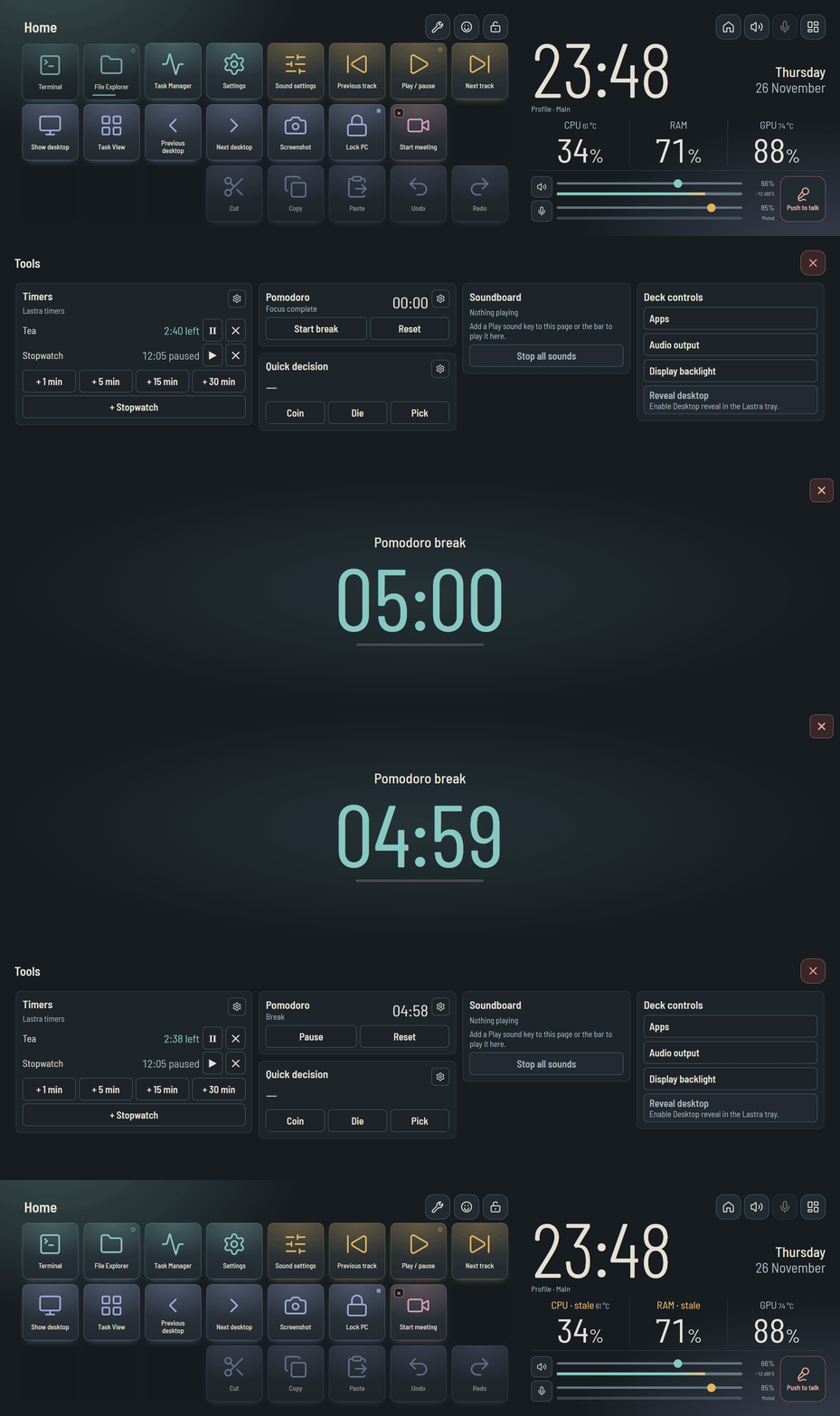
Tap the wrench on Deck Keys to open timers, the stopwatch, Pomodoro, the soundboard, and deck controls. The larger buttons are designed for touch. Close Tools with the red ×.

Start a Pomodoro break to fill the XENEON EDGE with the countdown. Tap the red × to return to your previous view while the break continues.

Watch the Tools and break demo · Read the Pomodoro guide
The larger Tools panel with readable buttons and a red close control. Full-screen Pomodoro break countdown with a red close control in the top-right corner.

Live PC stats

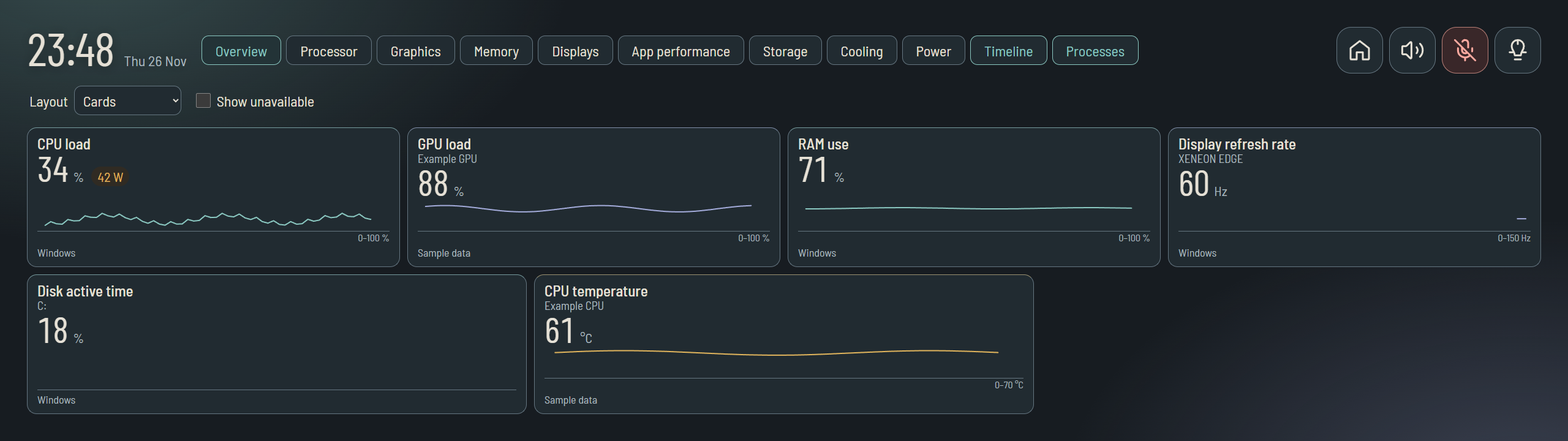
Resize and rearrange Stats cards for CPU, GPU, memory, temperatures, and power. Put load in percent and measured watts on the same chart with separate scales when the hardware reports both values.

Read the telemetry guide
Stats overview with sample CPU power, GPU and memory load, display refresh rate, frame rate, disk activity, and temperature.

Themes and looks

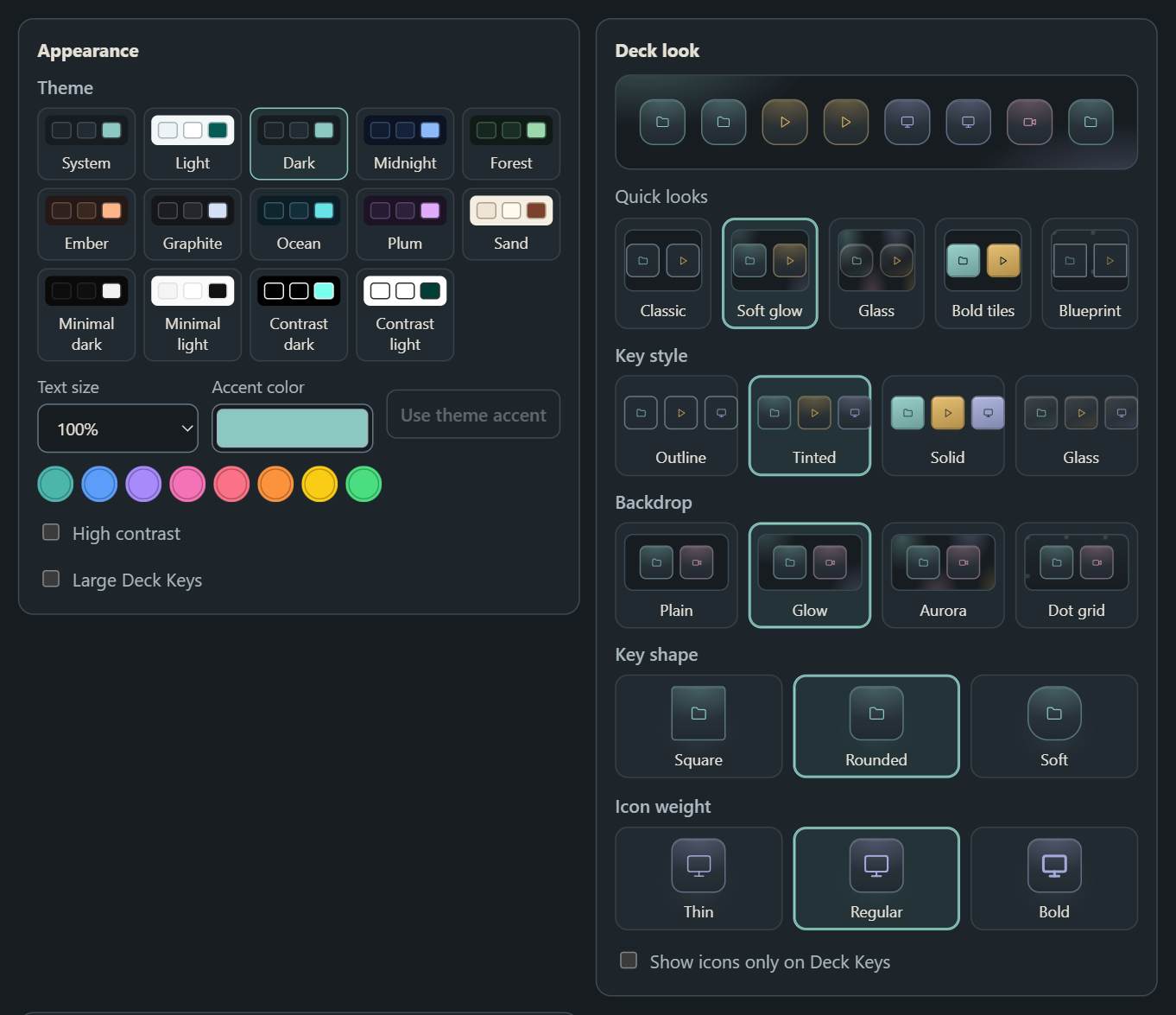
Choose one of 14 themes, then decide how the keys are drawn. A quick look sets the key style, backdrop, key shape, and icon weight together. The four plain themes use fixed outline keys and a flat background.

Read the deck look guide
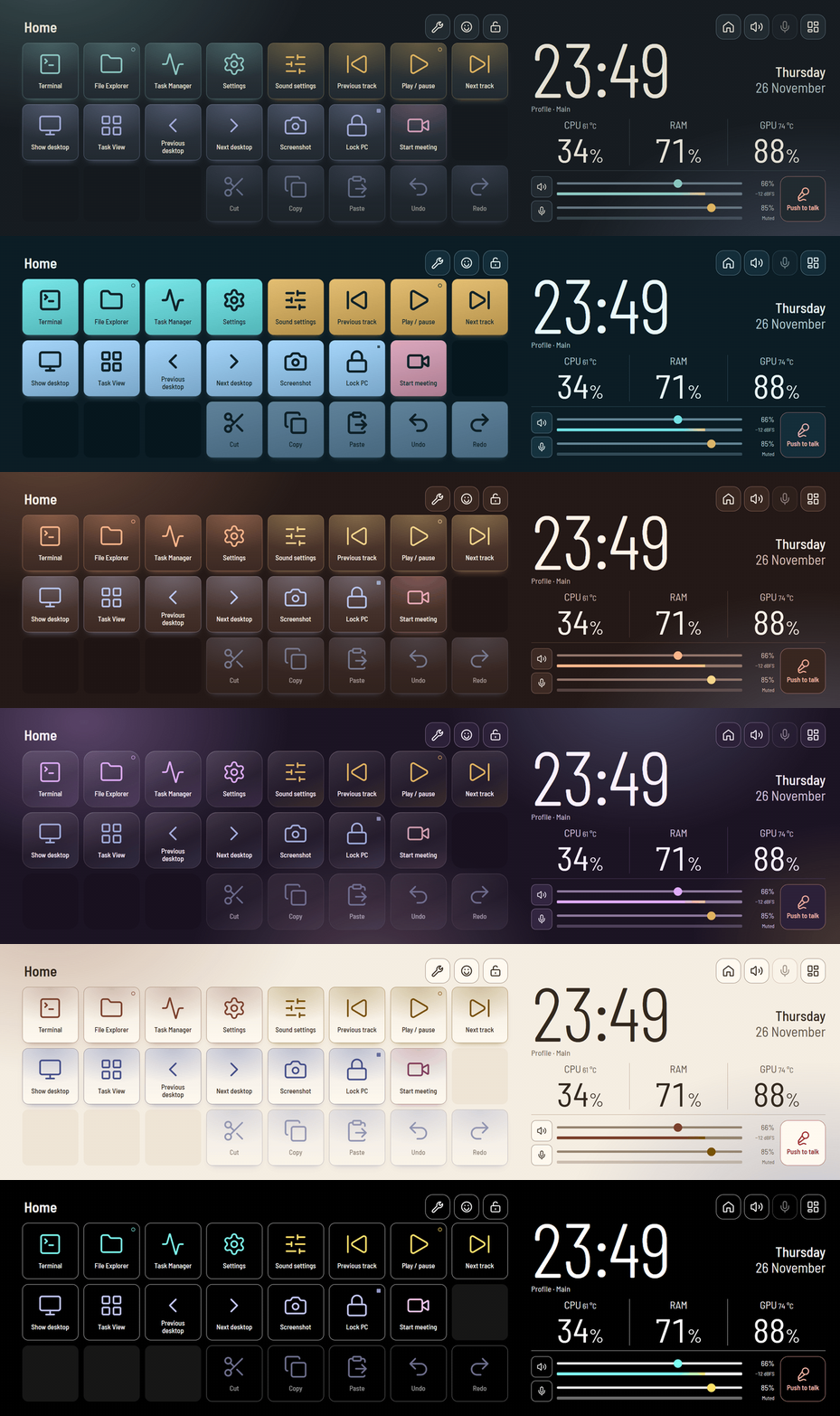
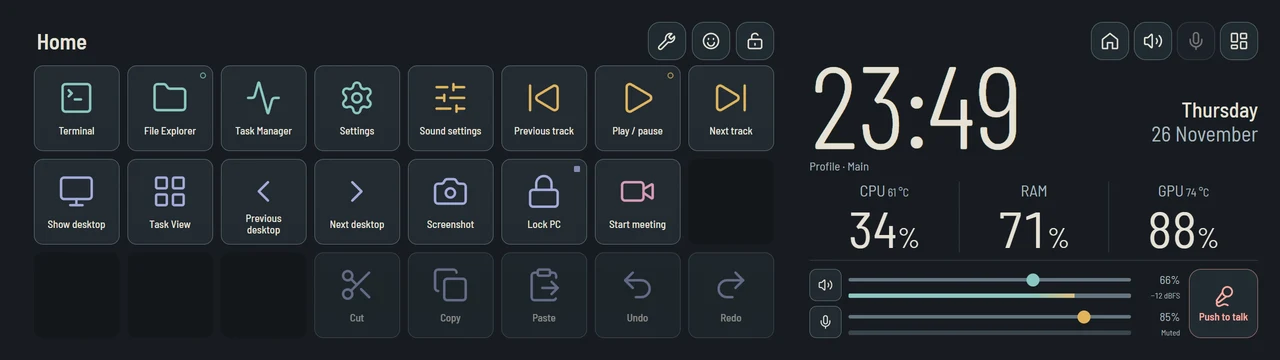
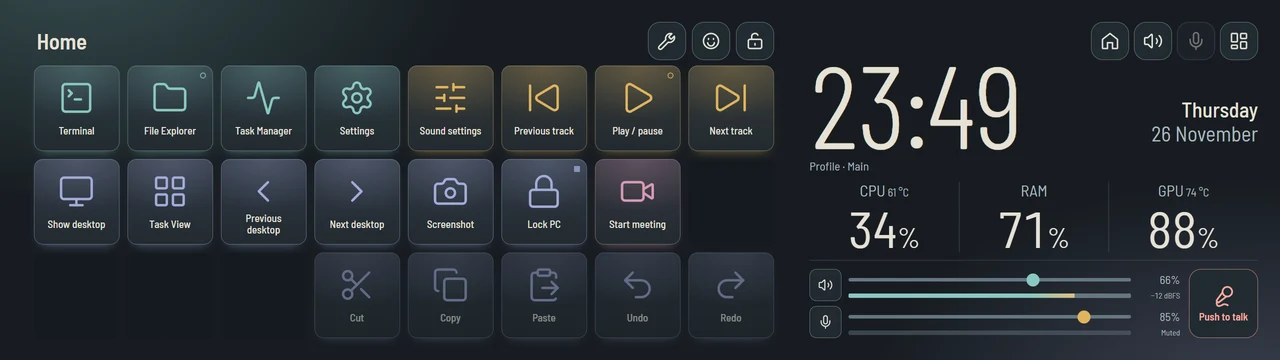
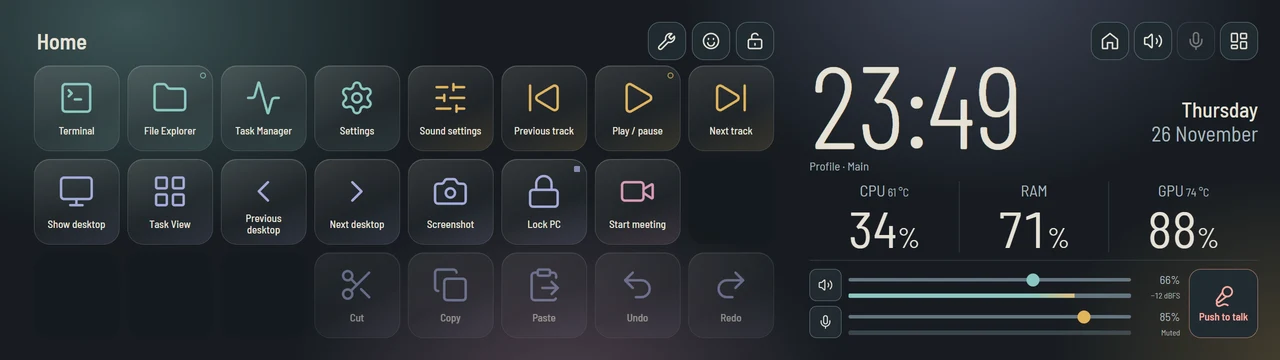
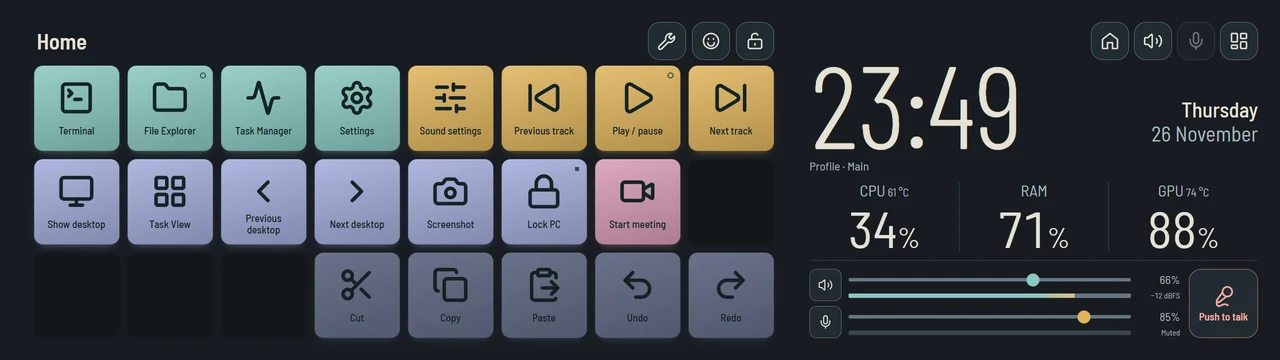
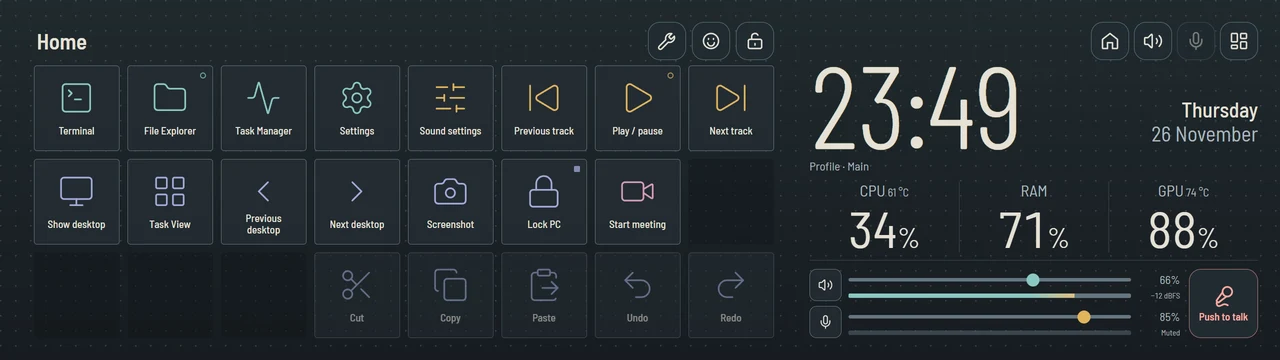
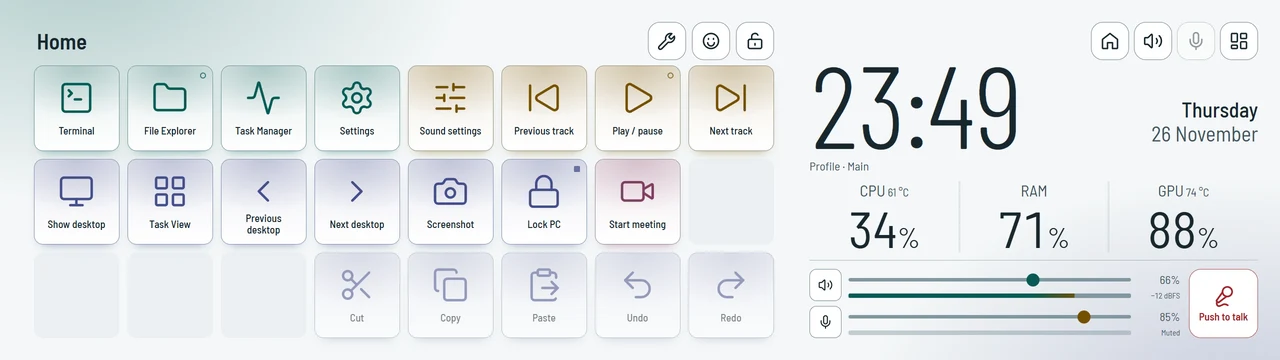
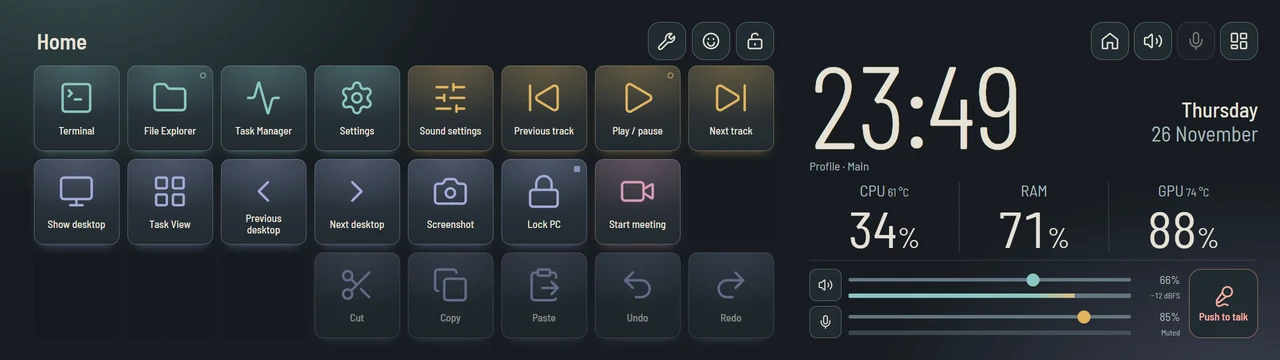
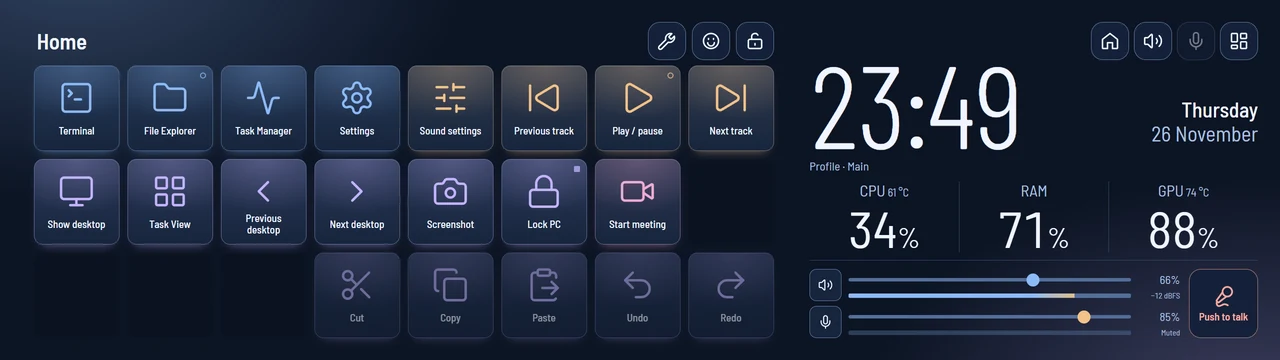
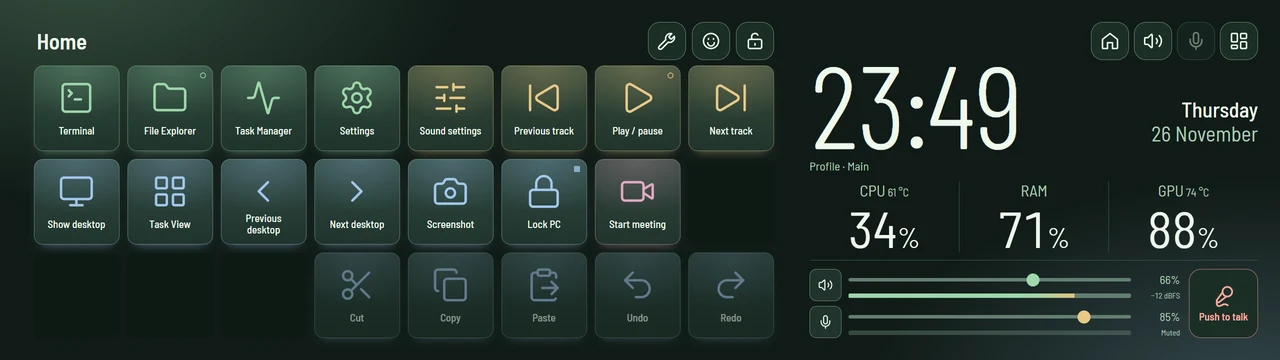
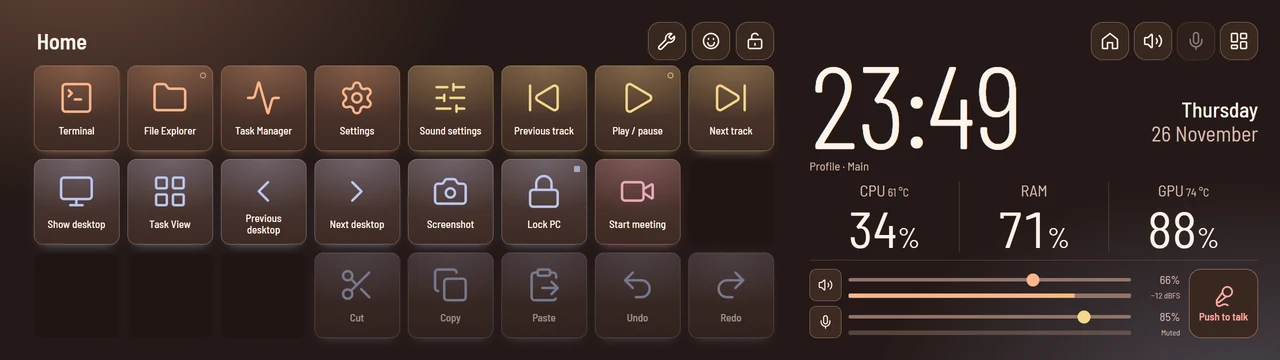
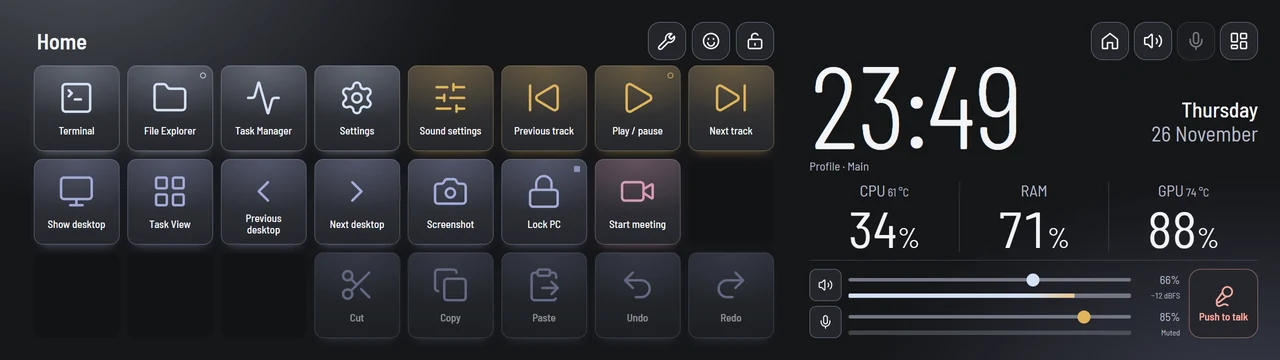
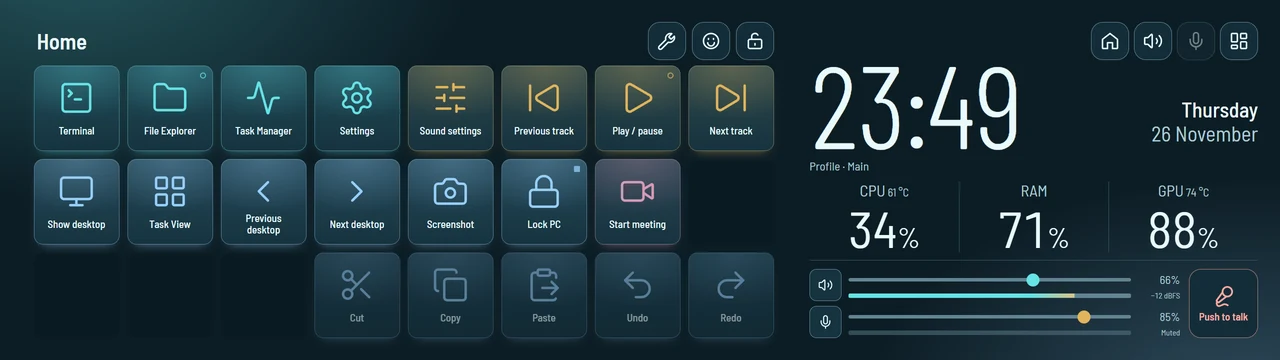
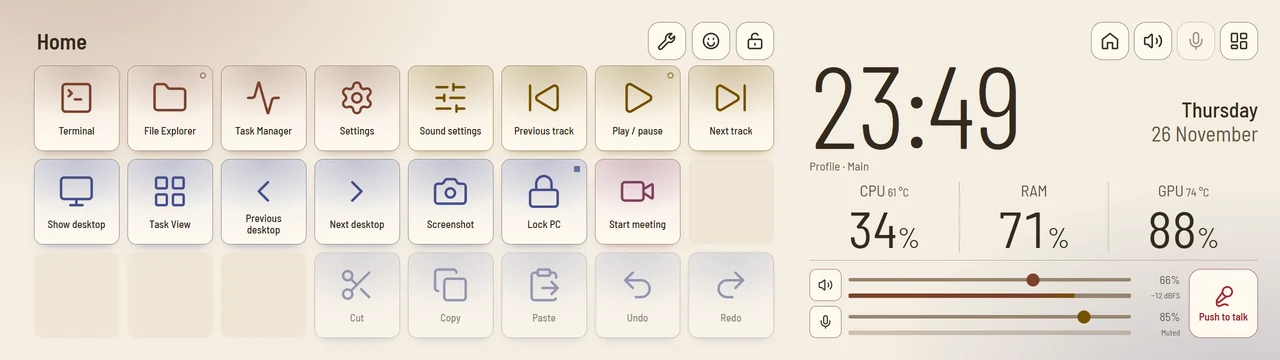
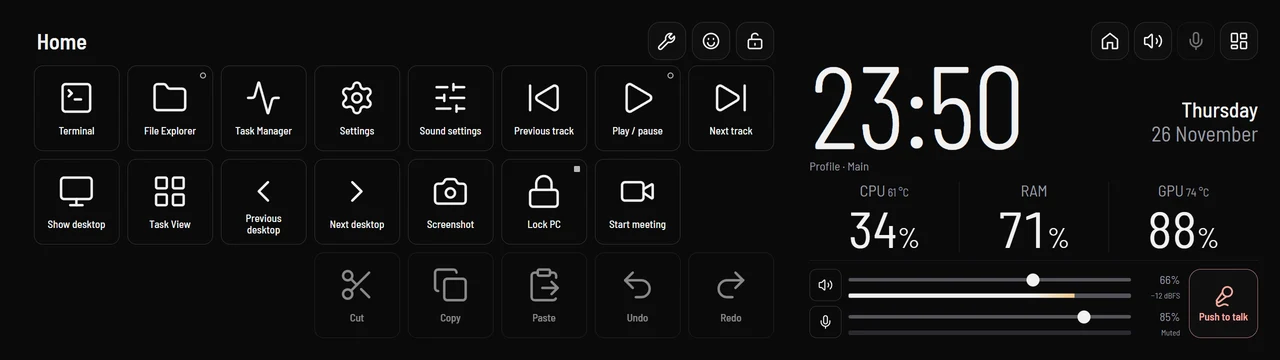
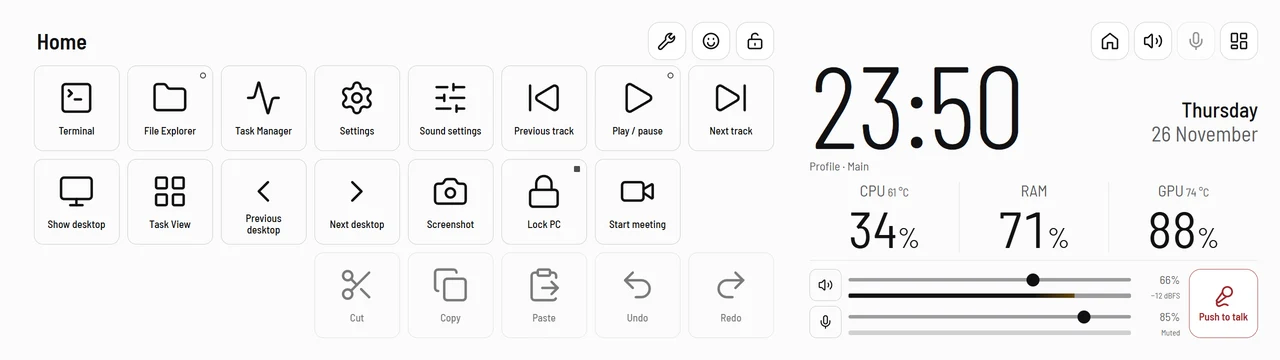
Deck Keys changes through ten combinations of theme and quick look, from Dark with Soft glow to Contrast dark.

Five quick looks

Shown on the Dark theme. Pick one under Settings → Display → Deck look and the deck changes at once.

Color themes

Shown with Soft glow. System follows the light or dark appearance of the desktop.

Plain themes

Four themes keep the deck plain on purpose. They always draw outline keys on a flat background.

Make it yours

  • Key style. Outline, Tinted, Solid, or Glass.
  • Backdrop. Plain, Glow, Aurora, or Dot grid, drawn from the colors of the theme.
  • Key shape and icon weight. Square, Rounded, or Soft corners, with Thin, Regular, or Bold icons.
  • Accent color. Pick one of eight presets or any color.
  • Key colors. A key takes the color of its category. Give any key a color of its own in the editor.
  • Icons only. Hide the labels and enlarge the icons.
The Appearance and Deck look cards in Settings, with theme swatches, accent presets, quick looks, key styles, backdrops, key shapes, and icon weights.

Set up your XENEON EDGE

Lastra works with the panel as an extended Windows display, in landscape or portrait. You can use it while iCUE is closed.

  1. Connect the XENEON EDGE and choose Extend these displays in Windows Display settings.
  2. Download and run Lastra-Setup from the latest release. It installs for your Windows user.
  3. Open Lastra from the Start menu. If touch lands on another monitor, follow the Windows touch mapping guide.
  4. When Lastra offers an update, choose Download update or Later. You can check progress and retry a download under Settings → System → Updates.

Set up Lastra on Linux

Install the x86-64 Debian package with sudo apt install ./Lastra-1.5.1-linux-amd64.deb or run the AppImage. The Deck follows the active application on X11 and supported Wayland desktops.

  1. GNOME. Install the Lastra GNOME extension ZIP from the release, enable it, and install the GNOME Remote Desktop portal.
  2. KDE Plasma. Install the KDE Remote Desktop portal. Lastra loads the KWin foreground script while it is running.
  3. On GNOME or KDE, launch Lastra with --enable-wayland-keyboard and approve keyboard access. Read the Linux setup guide.